
Anúncios
Internal storage holds photos, music, downloads, and apps. It’s crucial for making your phone run smoothly.
Knowing how to manage storage stops “Storage Full” errors. It keeps both Android and iPhone devices quick.
To manage storage well, delete apps you don’t use. Also, clear out downloads and use tools from Samsung Galaxy and Pixel phones.
This guide shows how to keep internal storage tidy. It covers settings, cloud options, and regular cleaning for U.S. users.
Storage is split into system files, app storage, and personal data like photos and videos.
Making space means you can install new apps and update smoothly. It also helps your battery last longer, great for busy people.
Some cleanup tools need Android 9.0 or newer. So, make sure to check your Android version before trying those steps.
Understanding device storage versus memory
Storage keeps files like photos, music, videos, and documents. Memory, also known as RAM, lets apps and the Android system work while you’re using them. The difference between memory and storage shows why phones can be slow even if they have space left.
System storage has the operating system and apps that come with your phone. You can’t get much of this space back without trying complex steps. App storage is for the apps you download and their data. Personal data is where your media and documents go, usually taking up the most space.
Advice from Samsung and others says cleaning an app’s cache frees up space but keeps your files safe. If you clear app data, it will reset the app, removing things like logins and game progress.
Understanding storage helps you decide what to clean up first. Begin by getting rid of big files you don’t need. Then, handle app caches and delete apps you barely use. Remember, you can’t touch some system storage, so focus on clearing up space in ways that keep your phone working right.
| Storage Category | Description | Can You Reclaim It? | Typical Actions |
|---|---|---|---|
| System Storage | OS files and preinstalled apps required for basic operation | No, not without rooting or reinstalling | Keep updated; avoid uninstalling critical updates |
| App Storage | Installed apps, app data, and cache | Partially; cache can be cleared, data can be reset | Clear cache, offload apps, back up app data before reset |
| Personal Data | Photos, videos, downloads, and documents | Yes; move to cloud or external drives | Delete duplicates, transfer to Google Photos or external SD |
| Miscellaneous | Temporary files, logs, and residual installer files | Yes; usually safe to remove | Use built-in storage tools or trusted cleaners |
Old way vs new way of managing phone space
Before, smartphone users cleaned phone space by hand. They deleted apps, looked through photos, and cleared caches to free up space. This old vs new method showed its flaws; backups rarely happened and losing data was common.
Now, we use automation and the cloud. Tools like Android Free Up Space and Samsung Device Care help clean specific categories like Images and Videos. Services like Google Photos and iCloud save media to the cloud, so you can still access it without using phone space.
Phones with microSD card slots changed the game. These cards allow you to move files and app data off the phone. This is a great way for phone owners to increase storage cheaply.
The Play Store can now archive apps you hardly use, saving their settings and data. It leaves apps ready to use but frees up space. By adding cloud services, you don’t have to clean up storage as often; it’s a continuous process now.
Here are the main differences between the two approaches:
- Frequency: Old = clean rarely; New = maintain regularly.
- Safety: Old = no backups; New = safe with cloud and app archives.
- Efficiency: Old = delete by hand; New = smart, automatic cleaning.
- Performance impact: Old = unpredictable results; New = consistent better performance.
Mix old and new tips for managing phone space. Set up cloud backups, turn on app archiving, and use utilities for memory management. These steps will make your phone faster and keep storage management easy.
| Approach | Typical Tools | Data Safety | Time Investment | Performance Effect |
|---|---|---|---|---|
| Manual cleanup | File manager, manual photo deletion | Low | High | Short-term |
| Cloud offload + archive | Google Photos, iCloud, Play Store archiving | High | Low | Consistent |
| Device care + SD card | Samsung Device Care, microSD | Medium to High | Moderate | Stable |
Choose storage management methods that fit how you use your phone. Try using cloud services, regular device checks, and SD cards if you can. This combination keeps your phone’s storage in good shape and ensures it remains quick and responsive.
Workflow for freeing up internal storage
Start by checking your device’s storage. On most Android phones, go to Settings > Storage to see system, apps, and personal info. Samsung users should look at Device care > Storage. Android 9.0 and later devices offer quick wins for storage management under Free up space.
Before removing anything, back up your photos and videos. You can use Google Photos, iCloud, or OneDrive. Make sure everything’s uploaded properly to avoid losing your memories.
Next, focus on big files. Delete movies and music you’ve downloaded. For Google TV, go to Library > Downloaded > Remove. For YouTube Music, it’s Library > More > Remove download. Delete old files easily from the Downloads folder under Profile > Settings > Downloads & storage > Clear downloads.
Remove apps you don’t use to save space without losing data. Go to Settings > Apps to get rid of them. Turn on Automatically archive in Google Play Store under Profile > Settings > General. This keeps the data and icons, but frees space.
Clear your caches, but do it carefully. Go to Settings > Apps > [app name] > Storage > Clear cache. Only use Clear data if you want the app back to its original state. This helps manage space without deleting your files.
For more space, move files to a computer or microSD card. Use Samsung My Files or Files by Google for this. USB OTG drives are great for extra space when you’re on the go.
To finish, empty the Trash and restart your device. Make sure everything’s deleted in Gallery and My Files Trash, then reboot. Restarting updates the storage information and keeps everything running smoothly.
Do these steps regularly to keep your device fast. Use this guide to help you manage your phone or tablet’s internal storage well.
Key internal storage options and comparison
Choosing the right internal storage is crucial for phone performance. Built-in storage is the main spot for apps, the system, and your data. It gives the quickest access and is a must for installs and system files.
microSD cards are great for adding space for photos and videos. Phones from Samsung and Motorola, for example, often support microSD. This makes it a cost-effective way to store lots of media. By moving files to a card, you can free up space without affecting apps.
Cloud services like Google Photos and iCloud provide backup from afar. They let you store images, videos, and files while accessing them anywhere. Cloud storage is a top choice for balancing reach and space on your device.
App archiving helps you save space by removing apps you rarely use, keeping their settings and data safe. It helps keep your device tidy, working well with other storage methods.
External drives and USB OTG adapters are perfect for moving big files quickly. They are ideal for photographers and editors who need fast or temporary storage. This option shows the balance between using internal and external storage.
| Name | Role | Main Benefit |
|---|---|---|
| Built-in storage | Primary location for apps, OS, and user data | Fast access; required for installs and system files |
| SD card / microSD | Removable external storage for media and supported apps | Cost-effective capacity expansion; easy file transfer |
| Cloud storage (Google Photos, OneDrive, iCloud) | Remote backup and offload for photos, videos, documents | Frees internal storage while keeping files accessible |
| App archiving (Play Store automatic) | Removes seldom-used apps but preserves app data and icon | Reclaims space without losing personalized settings |
| External drives / USB OTG | Temporary offload for large files via USB or OTG adapters | Quick transfer and offline storage without changing setup |
When space gets low, phones will suggest archiving apps automatically. Deleting downloads and cleaning app caches are simple steps that help. They are part of the bigger picture in managing phone storage.
Think about storage in three types: fast local storage, SD cards, and the cloud. Using SD cards or cloud service can cut down on the need to download things. Stream music and videos instead of storing them to save space.
Samsung devices make it easy to move files to microSD and clear the Trash. This process shows how using device tools, removable storage, and cloud services can meet various storage needs.
How to optimize internal storage with settings
Start managing your phone’s storage with the tools it comes with. Find and remove big files, delete apps you don’t use, and set limits to avoid mess. We’ll show you how to do this on Android and Samsung phones, and set up automatic habits to keep space free.
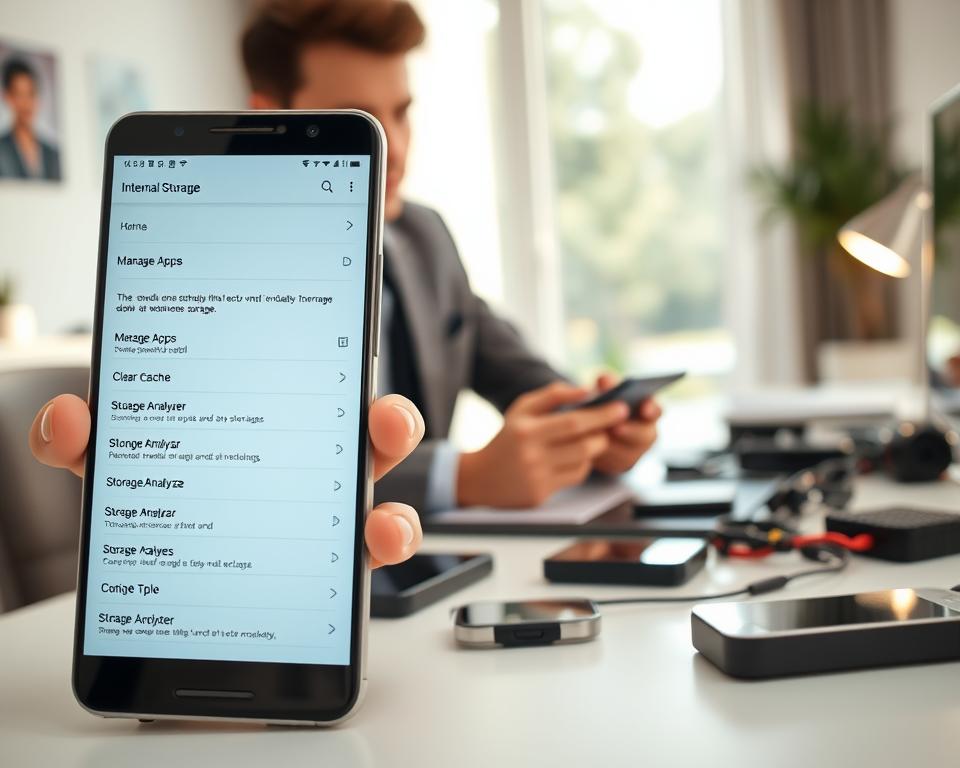
Use built-in storage tools
Go to Storage in your phone’s Settings to see what’s taking up space. If you’re using Android 9.0 or later, click ‘Free up space’ to get rid of big or unnecessary files. The Play Store also has an option to archive apps you don’t use under Profile > Settings > General.
Samsung users have similar tools under Settings > Device care > Storage for managing files by type. To stop apps running in the background and clear memory, use Device care > Memory > Clean now. This keeps important apps safe.
Enable automatic app archiving
To save space without losing your data, turn on Automatic app archiving in the Google Play Store. Go to Profile > Settings > General and select Automatically archive apps. This keeps your data safe and makes re-installing apps fast.
Try this feature with some apps you don’t often use first. It’ll help you see if automatic archiving works for your storage needs.
Set message and download limits
Texts and downloaded files can quickly fill up your storage. In your Messages app, tap More options > Settings > More settings > Delete old messages to clean up automatically.
Regularly empty your Downloads folder with either My Files or Files by Google. To avoid future buildup, adjust your browser and app settings to ask before saving big files. This helps keep your storage clean and ready for new things.
| Action | Where to find it | Benefit |
|---|---|---|
| Free up space tool | Settings > Storage; Files by Google | Identifies large files and suggests deletions |
| App-by-app storage | Settings > Storage > Apps | Clear cache or uninstall large apps safely |
| Automatically archive apps | Google Play > Profile > Settings > General | Reclaims space while preserving app data |
| Device care cleaning | Samsung: Settings > Device care | Deletes category files and stops background tasks |
| Delete old messages | Messages > More options > Settings > More settings | Automates message limits to prevent growth |
Practical internal storage tips and tricks
Keep your phone’s storage clean to prevent slowdowns. Mix quick fixes with regular habits to free up space. Start with app data and repeated files.
Clear cache vs clear data
Clearing your cache removes temporary files but may slow down apps at first. Clearing data wipes all settings and saved info.
Delete specific app data before using the clear data option. For instance, remove Spotify’s offline songs or WhatsApp media manually. Use full app resets when necessary.
Manage media smartly
Photos and videos use most of the space on phones. Save them to Google Photos or iCloud, then delete them from your phone. Remove downloaded videos and music after you’re done with them.
Clear your browser’s cache and old message attachments to quickly free space. On Samsung, empty the Trash in Gallery > Albums > Screenshots. Keep your downloads folder clean by regularly deleting old files.
Use file managers and duplicate finders
Use Files by Google or Samsung My Files to find and sort large files. Duplicate finders can identify repeated items like photos or documents.
Save media to an SD card or a computer to keep storage free. Clear app caches and remove old content regularly.
| Action | When to use | Space impact |
|---|---|---|
| Clear cache | When apps show temporary bloat or storage is low | Low to moderate; immediate relief |
| Clear data / storage | When app reset is needed or reinstalling | High; removes all app data |
| Back up and remove photos | After large photo or video shoots | High; can free GBs |
| Use duplicate finder | When many similar photos or downloads accumulate | Moderate to high; removes redundant files |
| Remove offline media | After travel or binge-watching | High; streaming caches are large |
Increasing internal storage capacity options
Choosing how to add more storage relies on your budget, device compatibility, and file usage. Some go for a hardware upgrade for quick benefits. Others prefer cloud plans for storing photos and documents away from the device.
Hardware choices
When buying, opt for Apple, Samsung, or Google phones with more storage to avoid limits later. It’s often cheaper than paying for cloud storage over time.
For quick extra space, use microSD cards on Androids like Samsung Galaxy. These let you transfer media and some apps easily.
But remember the trade-offs: larger internal storage is fast and stays put. MicroSD cards are cheaper and removable but might be slower and less reliable.
Software and service choices
Cloud services like Google One, iCloud, or Microsoft OneDrive are great for moving files off your phone. They allow for easy scaling and automatic backups.
To save space, stream your music and videos. Combining streaming with cloud storage is effective for accessing lots of media without clogging your phone.
For the best storage plan, mix strategies: start with a phone that has lots of space, add a microSD if you can, and subscribe to a cloud service for backup. This approach balances cost, speed, and dependability as you expand your phone’s storage.
Internal storage vs external storage: deciding which to use
Choosing where to store apps, photos, and backups means considering speed and sturdiness. Internal storage is where app installs and system files go. It’s quicker and more efficient for running apps and games.
External storage like microSD cards or USB OTG drives adds more space. They’re great for holding lots of photos, videos, and big files you rarely use. Use them for storing big collections and for moving stuff temporarily.
Think about safety and maintenance. Internal storage is safer for system data and has less risk of getting corrupted. External storage’s dependability changes with different brands and quality. Avoid losing important stuff by backing it up if you use cheaper cards.
Know the limits you’re working with. Not all apps can fully move to an SD card. For example, many apps from Google Play and Samsung are like this. Samsung’s My Files app can move media, but the main app data stays internal. Keep stuff you use a lot and recent files on internal storage to keep things speedy.
Set up a simple system that uses both kinds of storage well. Keep apps and their data on internal storage for consistent performance. Move pictures, downloads, and old files to microSD or the cloud to make room. External USB drives are perfect for big one-time moves or sharing with other devices.
| Use | Best for | Performance | Reliability | Notes |
|---|---|---|---|---|
| Internal storage | Apps, system files, active data | High; faster app launch and multitasking | High; less prone to compatibility issues | Required for most app installs; boosts responsiveness |
| MicroSD card | Photos, videos, long-term media | Medium; depends on card class and phone slot | Medium; risk of wear and swap-related errors | Good for extra capacity; keep backups and use reputable brands |
| USB OTG drive | Temporary bulk transfers, backups | Variable; USB standard and device ports matter | Medium; portable but easy to misplace or corrupt | Ideal for quick file moves between devices |
| Cloud storage | Syncing across devices, offsite backup | Depends on connection; not local speed | High; providers like Google Drive and Dropbox offer redundancy | Great for archive and access from multiple devices |
Match what you’re doing with the best storage option. Keep apps and things you often use on internal storage for top performance. Put big files and archives on microSD or the cloud for more room. Use USB OTG drives for jobs that aren’t permanent and always backup to avoid risks with external storage.
Measuring efficiency: data-driven benefits of good storage management
Having good storage habits helps your phone work better every day. Regular checks show how more free space makes apps respond faster. You can use easy measures to see how things improve over time.
When you free up space, apps start up quicker and your phone slows down less. People find that clearing out a few GBs means apps crash less and multitasking gets better. Noticing these changes helps show why it’s good to keep your storage in check.
Most of the space you can get back comes from bigger files you don’t use. Things like large videos, games you don’t play, and old downloads give back the most space. For example, just removing a few big videos can give you back several GBs. Deleting unused apps and games can free up quite a bit too.
Clearing app cache is also helpful and gives quick results. App caches can take up quite a bit of space. If you clear caches and remove some apps, you’ll quickly make more room without losing important stuff.
Checking your storage every few weeks helps keep your phone working well. Planning these checks avoids those annoying “Storage Full” messages and keeps your phone running smoothly. Samsung Galaxy and Google Pixel phones have tools that make this easy.
Here’s a simple guide on what cleaning up can do. It shows how much space you might get back and how it can make your phone work better.
| Cleanup Action | Typical Space Reclaimed | Typical Performance Effect |
|---|---|---|
| Remove large videos and photo backups | 1–10+ GB | Noticeably faster media apps, smoother camera saves |
| Uninstall unused games or social apps | 200 MB–5 GB | Reduced background processes, improved battery life |
| Clear app caches | 10–500 MB per app | Faster app load times, fewer temporary glitches |
| Use device cleaning tools (Device Care, Files by Google) | 500 MB–several GB | System responsiveness improved, fewer background stalls |
| Archive rarely used apps | Variable, often 100 MB–1 GB | Preserves app data while freeing active storage |
Common problems and troubleshooting for internal storage
Having trouble with your phone’s storage can make it act weird. Here’s a quick guide to fix usual issues like stubborn apps, strange space numbers, and download problems. It thinks there’s no space left. Try these steps to fix your phone’s internal storage and get it working right again.
App won’t uninstall or move
To remove an app that won’t uninstall, first stop it in Settings. This stops it from running in the background. Try clearing the cache for a soft reset. But, clearing storage deletes your info, so do it last.
If the app still won’t delete, start your phone in Safe Mode to remove it. On Samsung and other phones, you can’t uninstall some apps. Just disable them to save space and stop updates.
Storage reporting mismatch
Ever seen wrong storage numbers? It’s usually hidden trash, old caches, or big files. Empty the trash bin on your device, clear caches, and restart. This updates the storage numbers.
Look through your messages and social apps for big files. Move your photos and videos to the cloud. Use Google Photos or iCloud. This way, you won’t lose them when you clear space.
Failed downloads and installs due to low space
Not enough space errors happen when your app store can’t unpack files. Make room by moving big files away or use app archiving. This helps with the temporary space the store needs.
Keep getting errors? Clear the cache for your app store and update your apps. Cleaning temporary files and restarting can fix download freezes. To avoid these issues, regularly clear downloads, backup your media, and check your apps’ sizes.
Final summary and best practices for ongoing internal storage management
Make keeping internal storage organized a regular task. Start by moving big files like photos and videos to services like Google Photos, OneDrive, or iCloud. Before you delete anything from your device, move it first. Use tools like Files by Google and Play Store’s app archiving to delete apps you don’t use anymore. This helps avoid “Storage Full” messages and keeps your phone working well.
Every couple of weeks, do a little cleaning. Empty the Downloads folder, check messages for things you can delete, and clear the Trash or Recently Deleted album. Also, say goodbye to apps you don’t use. For Samsung users, there’s a feature called Device care > Storage or My Files. It helps you move files to a microSD card and clean out the cache.
When it’s time to pick a new phone, think about how much internal storage you need. If you load your phone with apps and files, get a phone with more space or one that supports microSD cards. Also, use cloud services like Google One for backup. This way, you won’t lose important files.
Regularly, every few weeks, take some time to manage your phone’s storage. Back up your data, move big files off your phone, clear temporary files, and uninstall apps you don’t use. Following these steps is a smart way to manage storage. It will keep your phone running smoothly and make space for new things.